SeeKo plugins
SeeKo pluginsSeeKo keeps most of its features in plugins, so you activate only what your site needs. All of them are listed on the Plugins tab of the Seeko Panel (Appearance > Seeko Panel), each marked Required, Recommended or Premium, with its state and one button: Install, Activate, Update or Deactivate.
You usually do not need to start here: a demo import installs and activates the plugins that demo needs. Use the Plugins tab to set up a site without a demo, to add a plugin later, or to update the premium plugins. Premium plugins show Requires registration until you register SeeKo.
Required
Section titled “Required”| Plugin | What it does |
|---|---|
| Elementor Page Builder | Front-end page builder. The free version is enough for everything in the demos; SeeKo adds its own Elementor elements (Elementor overview) |
| Envato Market | Theme updates from ThemeForest (set it up) |
SeeKo plugins (premium)
Section titled “SeeKo plugins (premium)”| Plugin | What it does |
|---|---|
| Seeko Theme Core | Settings core and advanced features of the theme. Both demos need it |
| Seeko Pro Search | BuddyPress member and group search (SeeKo search) |
| Profile matching | Match percentage between members (see below) |
| Login Booster - Ajax Login & Facebook | Log in and register in modals, and Facebook login |
| Posts Like | Likes on blog posts |
| Rainbow Categories | Colored categories on the blog |
| Sidebar Generator | Create sidebars and choose them per page |
| Speed Optimization | Speed and optimization settings |
| Hide Admin Bar | Hides the WordPress admin bar on the front end |
Other recommended plugins
Section titled “Other recommended plugins”| Plugin | What it adds |
|---|---|
| BuddyPress | Member profiles, activity, groups, friends and messages |
| rtMedia | Media galleries for BuddyPress |
| Paid Memberships Pro | Membership levels, so you can charge your members (guide) |
| Contact Form 7 | Contact forms |
| Import/Export theme settings | Export and import your Customizer settings (guide) |
Matching system
Section titled “Matching system”Crafted to make it easier for your customers to find a compatible partner.
Matching algorithm can be set by the site administrator and you can define profile fields that impact the total percentage. All the functionality is nicely wrapped in an add-on, provided for free.
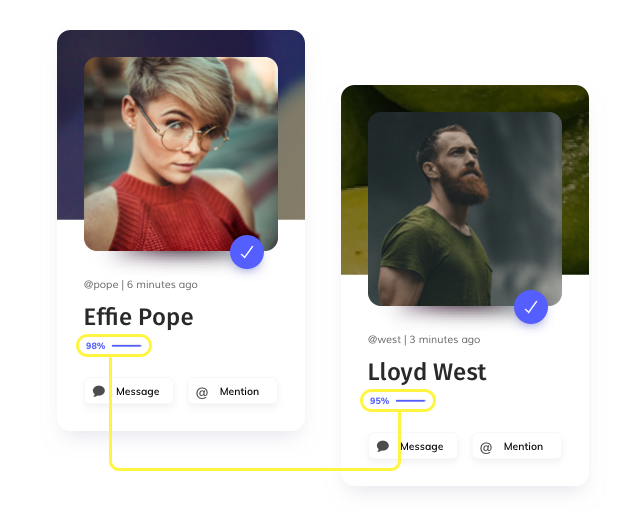
Edit Matching profile fields that impact the matching percentage from WP admin - Settings - BP Matching.
You can search in Members and in Groups. For members you can add the fields you wish to search in and order them. You can also check that the form to appear in the Members Directory.
When this is enabled, Seeko Search will integrate into the Search input by adding an icon for filters and opening the side-menu.
Membership additions
Section titled “Membership additions”Seeko comes with extra particularities for Paid Memberships Pro. See them below:
Register page integration
Section titled “Register page integration”In Seeko, PMPRO also integrates at the Register page, showing the levels of membership to choose from. After the account is confirmed and the user logs in, he will be redirected to the chosen level at checkout.
Popular level
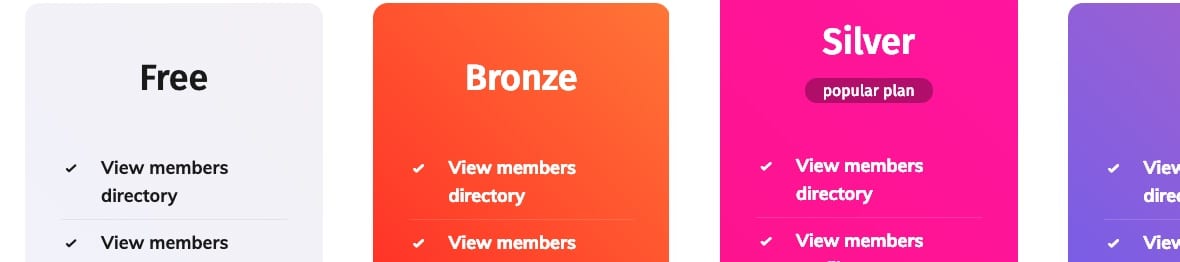
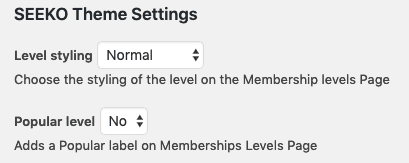
Section titled “Popular level”You can define a level as popular and it will show a small badge in front-end when listing the membership levels.
To set it:
-
Go to Wp admin - Memberships - Settings - Levels
-
Select your level and edit it.
-
Go to Seeko Theme settings section
-
Set Popular level to Yes
Membership level styling
Section titled “Membership level styling”You can choose from four colors to style your membership levels column in front-end.
To set it:
-
Go to Wp admin - Memberships - Settings - Levels
-
Select your level and edit it.
-
Go to** Seeko Theme settings** section
-
Set Level Styling option.
Membership Level Checkboxes
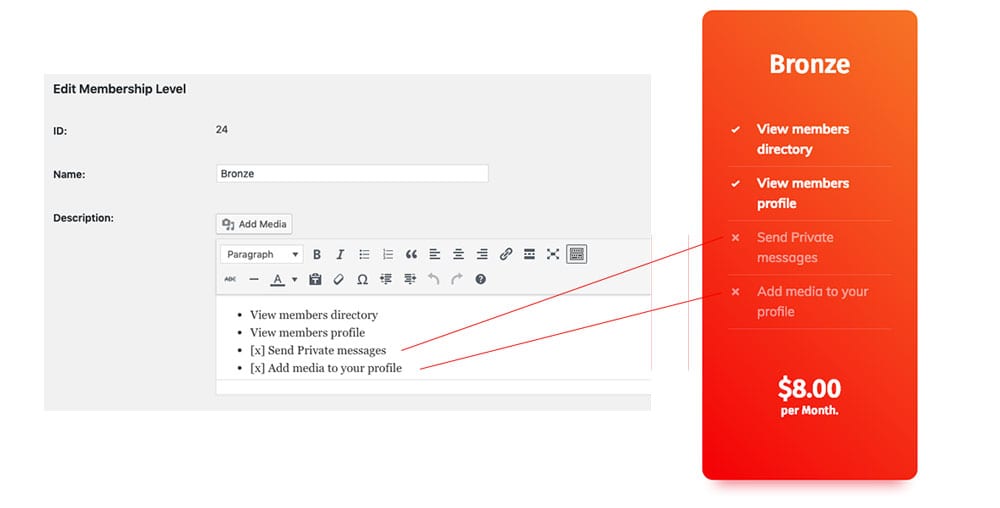
Section titled “Membership Level Checkboxes”You can add a list to the level description to show that certain things are enabled or disabled. You can easily do it by adding a list to the description and add [x] before the list item that has that feature disabled.
To set it:
-
Go to Wp admin - Memberships - Settings - Levels
-
Select your level and edit it.
-
Go to** Description**
-
Add [x] before the list item that has that feature disabled.