
BuddyApp child theme
BuddyApp child themeWhat the child theme is for
Section titled “What the child theme is for”Child themes allow you to make small or large changes to the parent theme’s design or structure in an update safe way. Any changes made in the child theme override original files.
To use it, keep BuddyApp installed and activate the child theme that comes with it (buddyapp-child):
- By upload: upload
buddyapp-child.zipfrom the WordPress folder of your ThemeForest download in Appearance > Themes > Add New Theme > Upload Theme, then activate BuddyApp Child. See Install BuddyApp.
The Help tab of the BuddyApp Panel shows in its system report whether a child theme is active.
Design changes
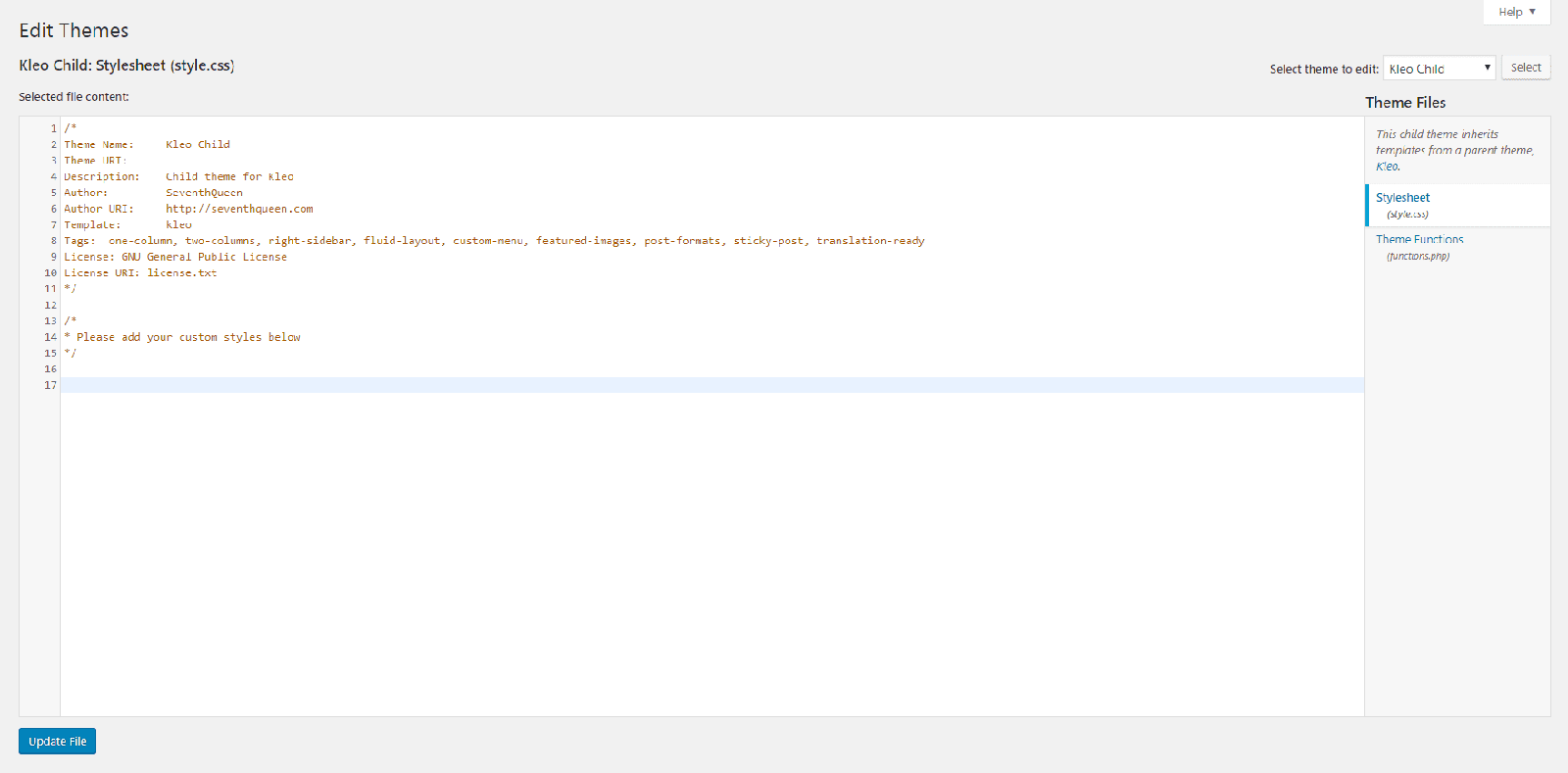
Section titled “Design changes”You can add custom CSS to your child theme by saving it in the style.css file. This can be added in various ways but the two most common are
-
Go to WP Admin > Appearance > Theme File Editor > BuddyApp Child > Style.css
-
Editing style.css directly via your favourite code editor. Navigate to /wp-content/themes/buddyapp-child/style.css
Additional code
Section titled “Additional code”You can add custom PHP to your child theme by saving it in the functions.php file. This can be added in various ways but the two most common are
-
Go to WP Admin > Appearance > Theme File Editor > BuddyApp Child > Functions.php
-
Editing functions.php directly via your favourite code editor. Navigate to /wp-content/themes/buddyapp-child/functions.php
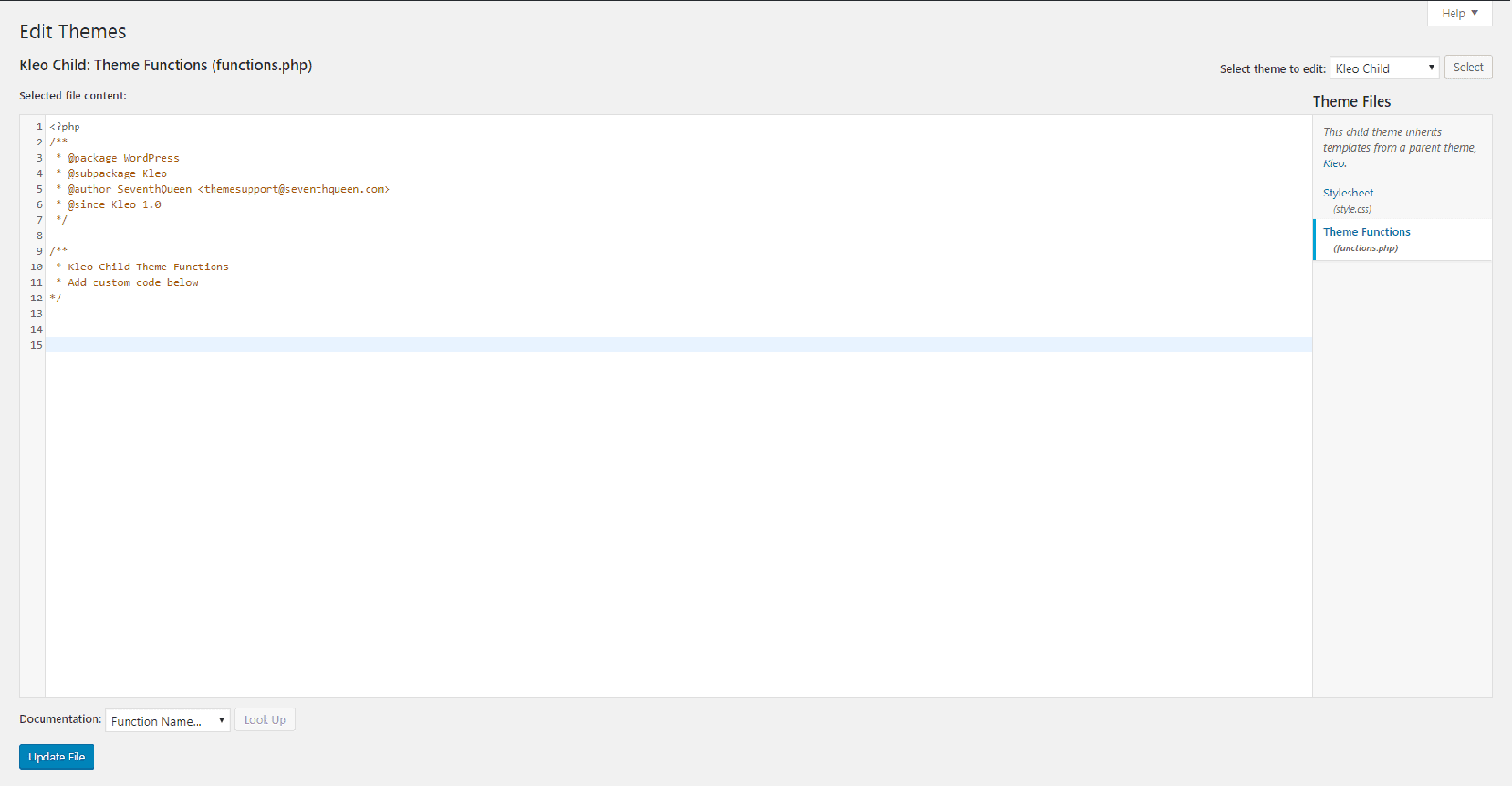
_Note: Entering custom code in your functions.php via the editor may result in an error that takes your website offline. If this happens you should connect via SFTP / FTP and remove the code from /wp-content/themes/buddyapp-child/functions.php. _
Note: If Theme File Editor is missing from the Appearance menu, file editing is turned off in wp-config.php (DISALLOW_FILE_EDIT) or by your host. Use SFTP instead.
File structure
Section titled “File structure”You can edit template files by copying them from the parent theme folder to the the theme child folder. You’ll find there is no other folder structure in the the theme child theme by default and you will have to create the folders to match the identical path yourself.
Example:
Section titled “Example:”If you wish to edit the Paid Memberships Pro checkout template then you would copy the checkout.php file from the path below
/wp-content/themes/buddyapp/paid-memberships-pro/pages/checkout.php
Navigate to your the theme child theme folder and create the below folders (shown in bold)
/wp-content/themes/buddyapp-child/paid-memberships-pro/pages/
Once the folder structure is in place copy your checkout.php file into the newly created pages folder.
/wp-content/themes/buddyapp-child/paid-memberships-pro/pages/checkout.php
You can now safely edit the copy of checkout.php from within your child theme.
Further reading
Section titled “Further reading”You can read more about child themes at WordPress.org.
Override a template file
Section titled “Override a template file”You can override the parent theme files by copying them to the child theme and making any changes as needed. To do this you will need to connect to your host via SFTP/FTP or via your hosts file browser.
Note: If you do not know your details to connect via SFTP/FTP then please contact your host for assistance.
Download your file
Section titled “Download your file”Once you have connected to your host you should navigate to /wp-content/themes/buddyapp/ to browse the parent theme folder.
Navigate through the folders until you find the file you wish to override. Make sure to make note of the folder path to this file - in this example I will be using /buddyapp/buddypress/members/single/cover-image-header.php.
Download the file to your computer and return to the /wp-content/themes/ folder.
Edit your file
Section titled “Edit your file”You can take this opportunity to make your desired changes to the file with your favourite code editor. Remember to save before the next step.
Upload your file
Section titled “Upload your file”Now that you have made your changes you should go to /wp-content/themes/buddyapp-child/. You will find that the child theme only has three files within it functions.php, style.css and screenshot.png. You will need to recreate the folder structure so that it it matches identically with the folder structure in the parent theme.
In my example I copied the file /buddyapp/buddypress/members/single/cover-image-header.php so I will need to create the folders buddypress, member and single within the child theme. This will give you a path of /buddyapp-child/buddypress/members/single/.
You can now upload your edited file into the /single/ folder to give you a full path of /buddyapp-child/buddypress/members/single/cover-image-header.php.