Add link to element or button in Revolution Slider 6.x
Common guides: Add link to element or button in Revolution Slider 6.xIn Revolution Slider version 6 or above you can easily add a link action to any element in a slide, also called layer.
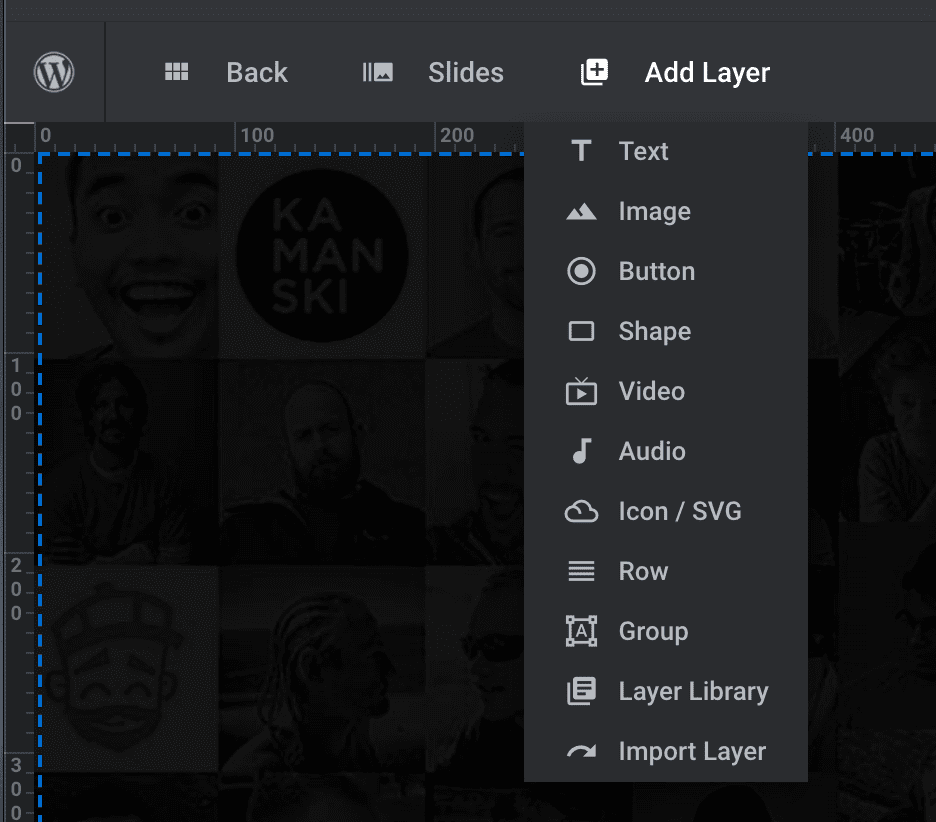
Add a Button or Text layer, depending on your needs
Section titled “Add a Button or Text layer, depending on your needs”If you already have an element on the page that you want to link just skip to next step.
Links can be added to any individual Layer
Adding the Click Action
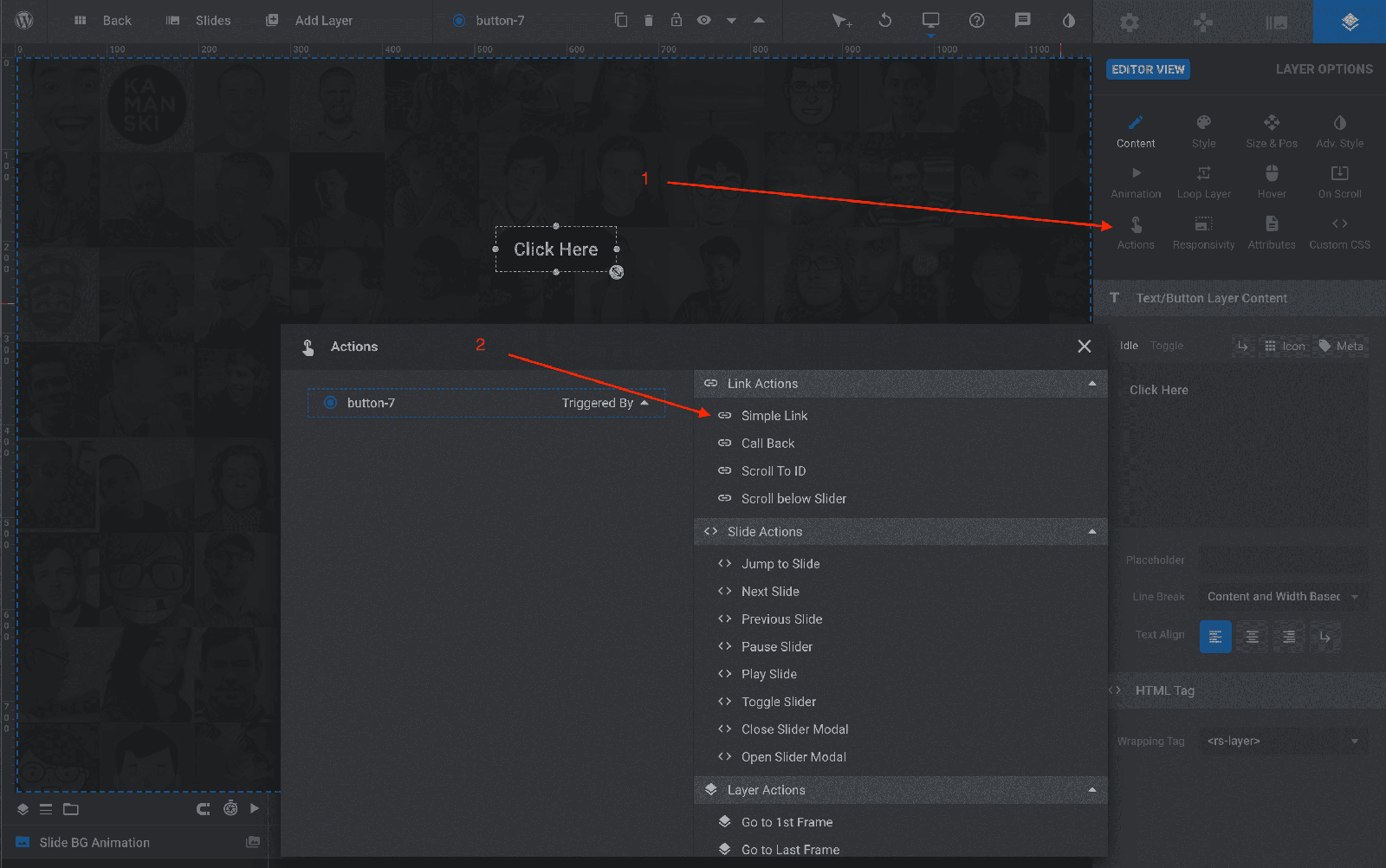
Section titled “Adding the Click Action”Next, select the Layer and click the “Actions” menu item, and then click the Simple link option.
Add Your URL and settings
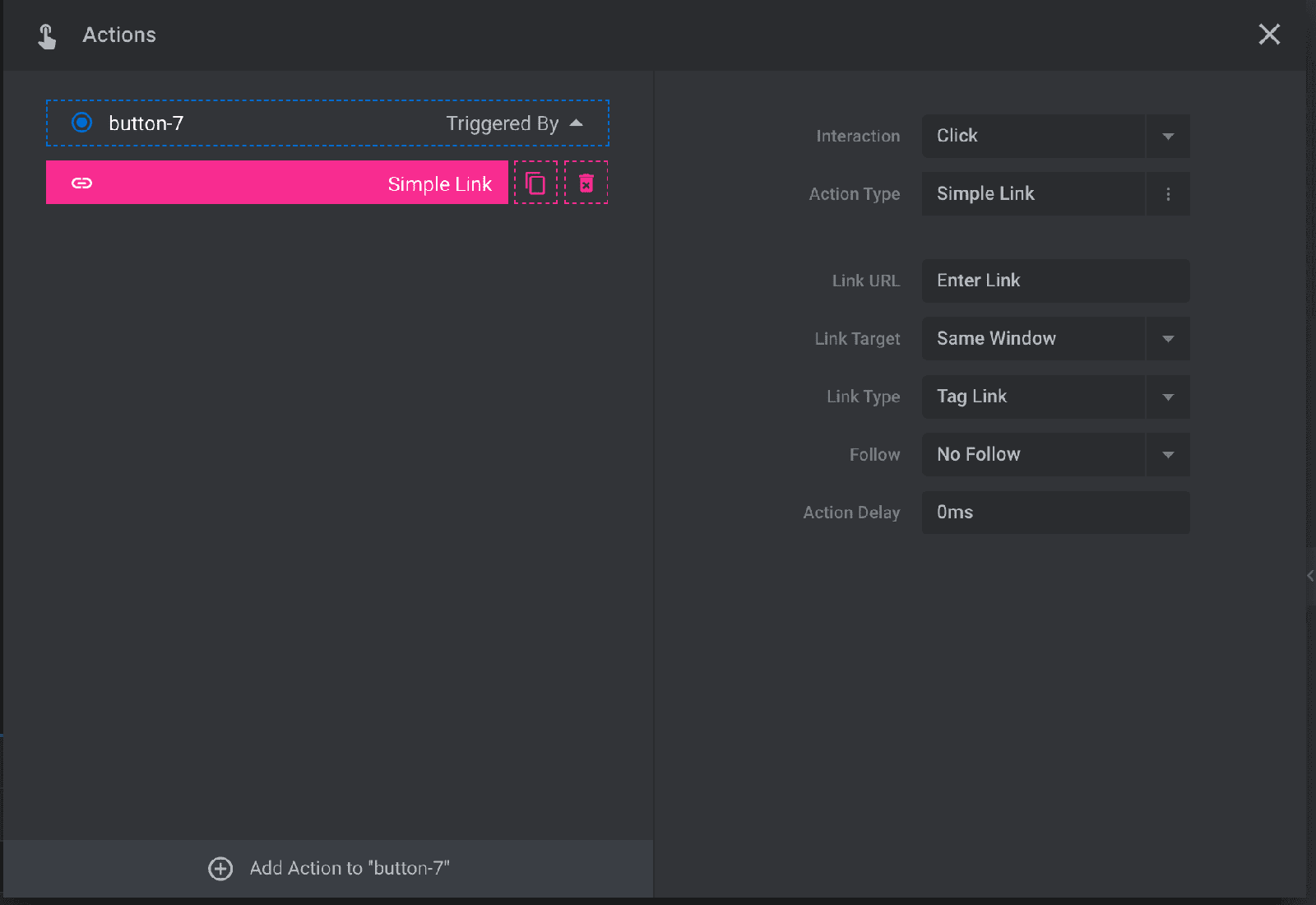
Section titled “Add Your URL and settings”After clicking the Simple link option you will get a new window with the options for the link:
Link URL: The actual link you want to go when clicking that element
Link Target: Open the link in same window or in a new window
Link Type: It relates to the way the element link is generated in the page. Link should be placed on the page as a regular HTML anchor tag (recommended) or if it should be triggered with jQuery.
Follow: Add an optional rel=“nofollow” attribute to the link.
Action Delay: Add an optional delay that occurs before the Link is clicked (only applicable if the “Link Type” is set to “jQuery”).