How to Build a Membership Site with WordPress (Step by Step)
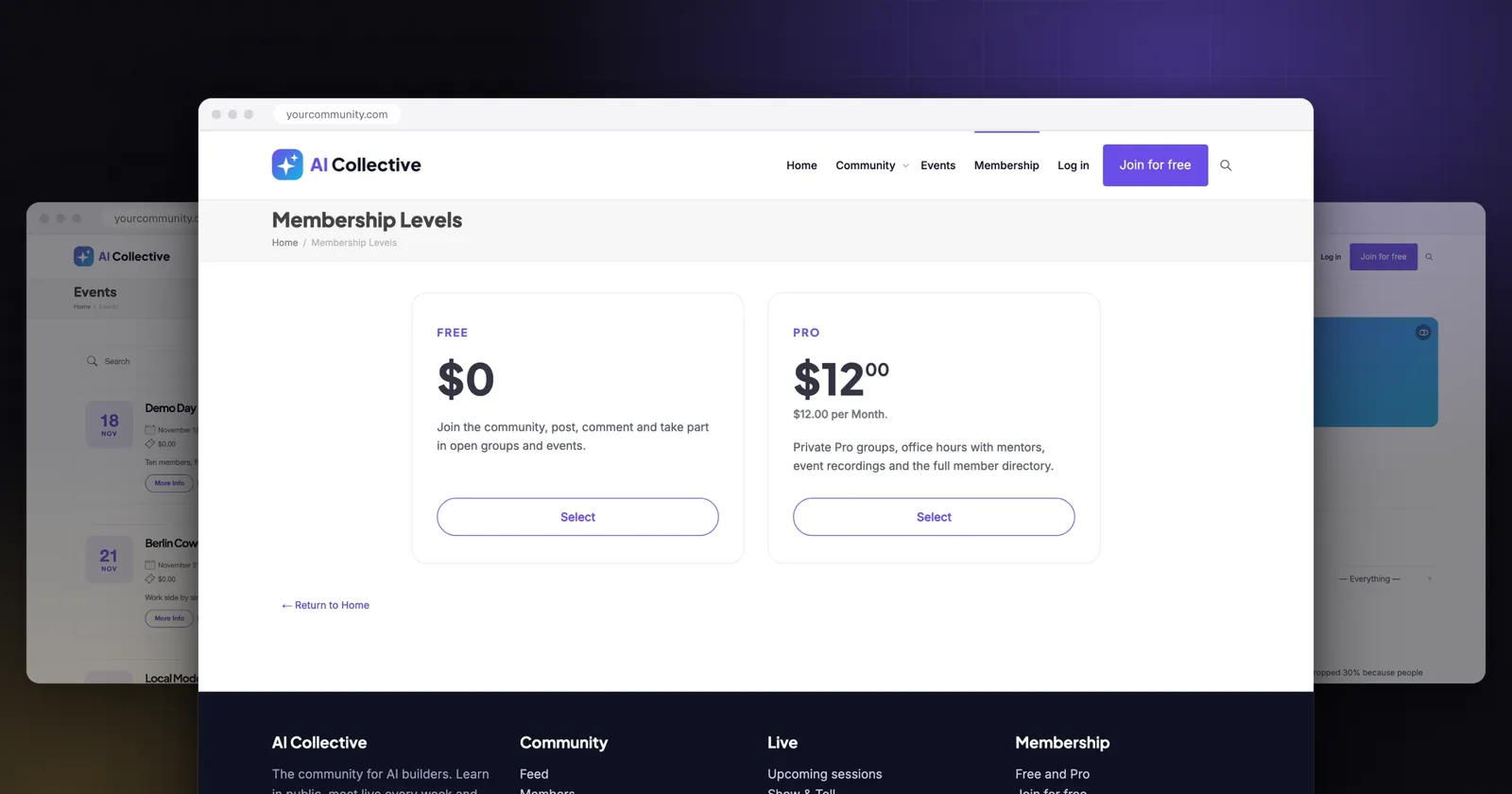
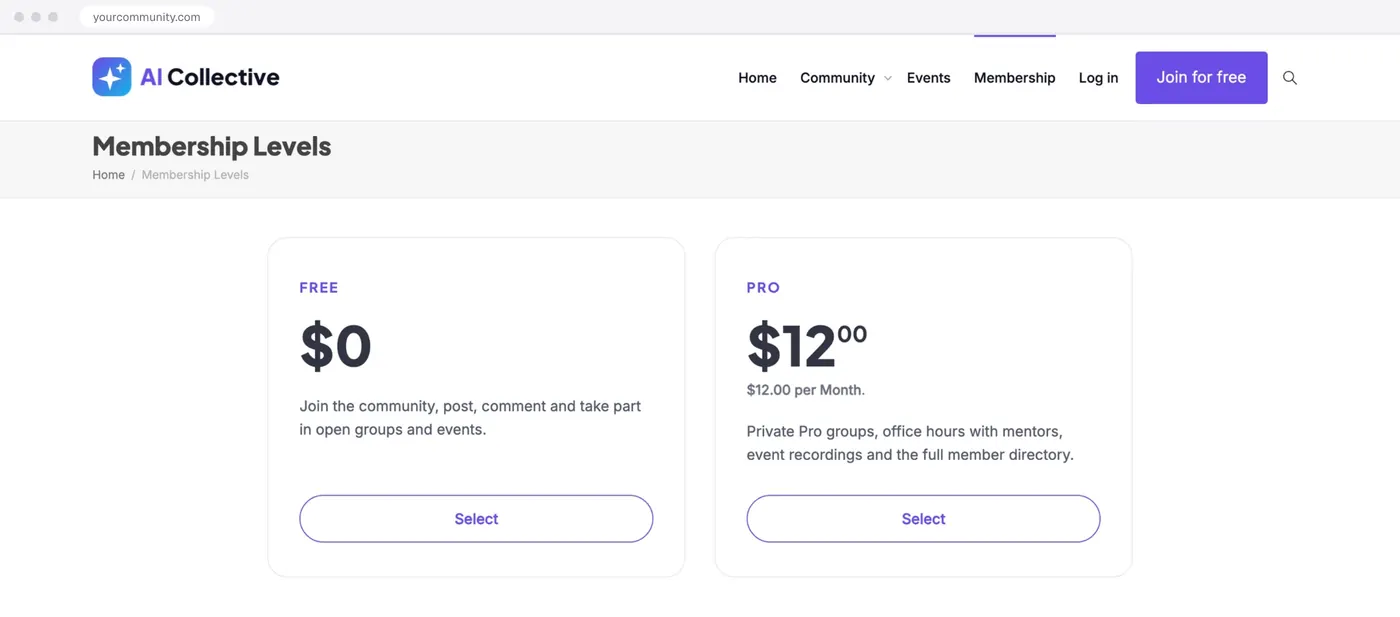
To build a membership site with WordPress, install a membership plugin such as Paid Memberships Pro, create your membership levels, connect a payment gateway like Stripe, and restrict pages, posts or community areas to those levels. A theme that styles the membership pages, such as KLEO, gives you the levels page, checkout and members-only areas in one design, and its AI Collective demo imports the levels section and the community in one step.
This guide uses KLEO and Paid Memberships Pro, because that is the setup we know best and document. The steps for the membership part work with any theme. Written on 16 November 2026 for KLEO 6, Paid Memberships Pro 3 and BuddyPress 14.
The plugin choice has a reason beyond habit. The Paid Memberships Pro core is free, and our themes add something on top of it that no other membership plugin gets: restrictions per level for BuddyPress areas, from the members directory to private messages. That is why our support team has recommended it for over a decade.
What you will build
- A free level and a paid level (for example $10 per month), chosen at sign up.
- Checkout with Stripe or another gateway.
- Members-only pages, posts and categories.
- Optional: a community (profiles, groups, feed, forums) where some areas are for paying members only.
Step 1: Plan your levels
Before you install anything, write down two things for each level: what members get, and what it costs. A common start:
| Level | Price | Access |
|---|---|---|
| Free | $0 | Public posts, the community feed, a few groups |
| Pro | $10 per month | Everything, plus members-only posts, private groups and recordings |
Decide one more thing now: what a free member sees when they reach a paid area. With KLEO’s restrictions they are sent to the levels page. That is the right behaviour, but if you do not plan for it, it looks like a broken link. It is one of the questions our support team answers most often on membership sites.
Step 2: Hosting and WordPress
You need WordPress 6.5 or newer, PHP 7.4 or newer (8.2 or 8.3 recommended) and HTTPS, which logins and payments require. Most hosts include a free Let’s Encrypt certificate.
A blog page is cached once and served to everyone. A member page is built for each logged-in member. A clean WordPress with KLEO needs 15 to 20 MB of memory per page load; with BuddyPress, bbPress and WooCommerce active it is 70 to 80 MB. We recommend a 256M memory limit, which rules out the smallest shared plans. We have seen sites arrive at our support desk with 40M. Full list: KLEO requirements.
Step 3: Install KLEO and import a demo
- Install KLEO and activate it. The KLEO Panel opens; you find it later under Appearance > KLEO Panel.
- Register KLEO with your license key or ThemeForest purchase code.
- On the Plugins tab, install and activate the child theme before you import, so the imported settings belong to the theme you keep using.
- Open the Demo Data tab, choose Elementor and import AI Collective. It installs BuddyPress, bbPress, Events Manager and Paid Memberships Pro, and adds the pages, including a membership levels section.
- Optional: tick Sample community to add sample members, groups and events while you design. Remove it from the Demo Data tab before launch.
If the import stops halfway, it is usually the server: the memory limit, the execution time, or a firewall. The larger demos want 256M and 180 seconds. Raise them and import again; pages already imported are kept. On a healthy server a full import with images takes about five minutes. After the import, check Appearance > Menus, because custom links can still point to our demo site.
Not building a community? Skip the demo and install Paid Memberships Pro on its own. Since PMPro left WordPress.org in October 2024 it is not in Plugins > Add New: KLEO’s Plugins tab installs it from PMPro’s own release, and on any other theme you download the zip from paidmembershipspro.com and upload it. That one change has brought us more than 25 tickets since 2025. See the import guide for the rest.
Step 4: Create the levels in Paid Memberships Pro
Go to Memberships > Settings > Levels and add a level for each row of your plan (menu names here are those of Paid Memberships Pro 3; older versions use slightly different ones):
- Name and description, shown on the levels and checkout pages.
- Billing: the initial payment, and for a subscription a recurring amount per month or year. Add a trial or an expiration if you need one.
- Content settings: tick the categories whose posts are for this level.
- Allow signups: at least one level must be open to sign ups, or visitors are sent back to the levels page.
If you also install the PMPro BuddyPress add-on, look at its “Unlock BuddyPress?” setting before anything else. Its lock option closes all of BuddyPress to non-members and overrides the restrictions you set in KLEO, so free members suddenly cannot create a group or send a message. Use one system for BuddyPress restrictions, not both.
Step 5: Generate the member pages
In Memberships > Settings > Pages, let Paid Memberships Pro generate its pages (levels, checkout, confirmation, account, billing, cancel). Edit them to use the full-width template if you prefer.
Step 6: Connect the payment gateway
In Memberships > Settings > Payments, choose your gateway, start in test mode, and connect your account. Ask your accountant whether you need to charge sales tax or VAT. The Paid Memberships Pro guide in our docs walks through each screen.
One thing to know before you count your margins: with the free PMPro core and Stripe connected through PMPro’s Connect button, PMPro adds a 2% application fee per payment on top of Stripe’s own fee. A PMPro license removes it, and so does saving your own Stripe restricted API keys in the gateway settings (PMPro’s Stripe documentation, checked 16 November 2026). On $2,000 a month that is $40.
Step 7: Restrict content
You have four tools, from broad to precise:
- Categories per level (step 4): every post in a members-only category is locked.
- Require Membership box on each page or post: tick the levels that may see it. If no level is ticked, everyone can see it.
- Shortcodes for parts of a page:
[membership level="2"]...[/membership]shows the content only to level 2. More examples in restrict content by membership level. - Community areas (KLEO): in Theme options > Memberships, choose which levels can open the members directory, other profiles, the groups directory, group pages and the site activity, send private messages or add media. The section shows only while Paid Memberships Pro is active, and these rules work with Paid Memberships Pro only.
The classic mistake: you lock a page to the Free level and forget to tick Pro. Now your paying members are locked out of content your free members can read. On every page, tick the level it is for and every level above it.
If members say they paid and still see the locked version, or that changes you made do not show, clear every cache: the cache plugin, the host’s server cache and any CDN. Do not cache pages for logged-in members, and exclude the checkout and account pages from caching.
Step 8: Test like a member, not like an admin
Administrators see everything, so a logged-in admin cannot tell whether a restriction works. Open a private window and go through the whole path: visit a locked page, register, pick a level, pay with a test card, and check that the page opens. Then cancel and check that access ends as expected. Switch the gateway to live mode only after that.
Before launch:
- Remove the sample community, if you imported it.
- Set the sender name and address in Memberships > Settings > Email, then send yourself a test receipt at an outside address. Emails that never arrive are a known problem on many hosts, and they usually need an SMTP plugin.
Alternatives to Paid Memberships Pro
Paid Memberships Pro is the one KLEO, SeeKo and SweetDate design, so its levels, checkout and account pages match your site without extra work. MemberPress, Restrict Content Pro and WooCommerce Memberships run on KLEO too, but they bring their own page design, and KLEO’s per-level BuddyPress restrictions do not apply to them. If you already sell products with WooCommerce, WooCommerce Memberships keeps everything in one checkout.
Want the community to be the main part? Read how to build a BuddyPress community site next.
Frequently asked questions
What do I need to build a membership site with WordPress?
Five things: hosting with WordPress 6.5+ and PHP 7.4+, an SSL certificate, a membership plugin such as Paid Memberships Pro, a payment gateway account such as Stripe, and a theme that styles the membership pages. Add BuddyPress if members should also get profiles, groups and a feed.
Is Paid Memberships Pro free?
The core is. It covers levels, recurring payments, content restriction and the member pages, and you download it from paidmembershipspro.com since it left WordPress.org in October 2024. Paid plans add add-ons, support, and remove the 2% fee on Stripe Connect payments.
How do I restrict content to members?
Tick the levels in the Require Membership box of a page or post, or tick categories in the level settings, and use the [membership] shortcode for parts of a page. With KLEO and Paid Memberships Pro you can also restrict BuddyPress areas per level in Theme options > Memberships.
Can I offer a free level and a paid level?
Yes. Create both in Paid Memberships Pro. On content the free level may see, tick both levels, or paying members get locked out of it.
How much does a WordPress membership site cost?
From $149 once plus hosting: WordPress, BuddyPress and the Paid Memberships Pro core are free, and a KLEO license is $149 once or $49 per year for 3 sites. Add card fees, PMPro's 2% on Stripe Connect unless you have a PMPro license or your own Stripe keys, and any paid add-ons.
Keep reading
How to Build a Dating Site with WordPress (Step by Step)
Build a dating site with WordPress and BuddyPress: member profiles, search by gender, age and location, profile matching and paid...
How To Customize The WooCommerce Cart Page With Elementor
Elementor Pro has an integrated WooCommerce builder. As from Elementor version 3.5, it is now possible to customize the WooCommerce cart...

SSL Certificates in WordPress, What are They and How to Add One
With the latest rise in WordPress insecurities, measures have been taken to ensure WordPress users are able to guarantee website visitors...